|
|

|
Importing Time Series Data |

|

|

|

|

|
||
|
Importing Time Series Data |
|
|
|

|

|

|
Importing Time Series Data
|
|
|
Importing Time Series Data |
|
|
|
|
|
||
|
Importing Time Series Data |
|
|
|
|
|
|
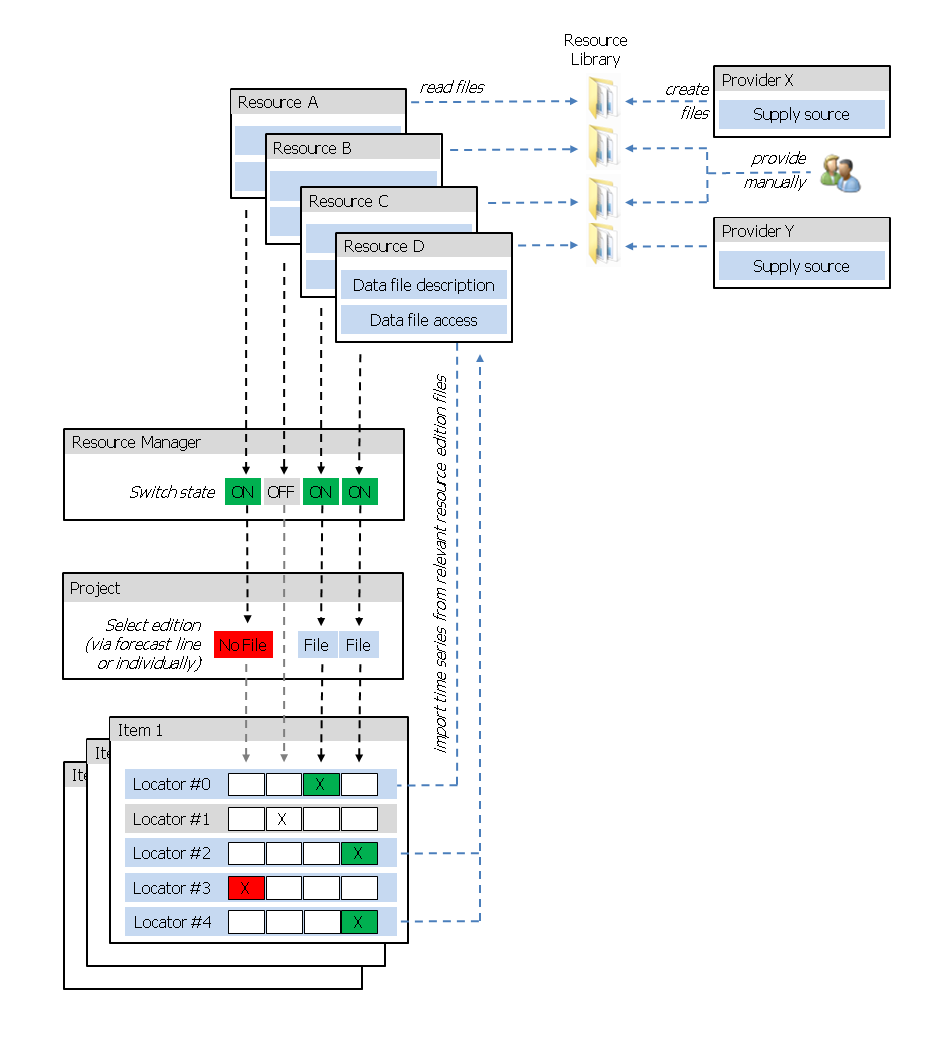
Integrating time series data from many different sources is one of the major concepts of DIWAX. The process of importing external data works along the interplay of Resources, Providers, Project settings, and Item-specific Locators. This allows for the utmost flexibility with respect to what data is actually used in a DIWAX project.
The interaction of the involved agent types is explained in this chapter: Starting from a schematic overview for a first impression the conceptual design is discussed in the subsequent sections. The concluding review sums up the theoretical background by applying it to the introductory overview.
A resource represents a (typically periodically updated) data source that is published in a specific file and data organization format. Resource agents hold the description of how the time series of a given resource are generally organized within each file (e.g. in rows or columns). Based on this information they can read any time series out of a given data file. This flexible design allows DIWAX to fully adapt to the specific file formats of practically all data producing units (like statistical offices, ministries, central banks, etc.).
Each resource has its own folder as a sub-folder in the main resource library The main resource library folder is set in the Configuration agent [Menu: Options > Configuration|Folder|Libraries]. All data files of a given resource must be stored in this sub-folder that is created by the resource agent itself.
Each data file name must have a leading edition identifier (e.g. 2010-Q1) that marks the last ex-post period for which data values can be found in the file (therefore, a resource data file is called an "edition file"). A release date identifier (e.g. 2010-04-15) that indicates the publication date of the data at the end of the file name is optional. Any text between the edition and the release date identifiers is ignored. "2010-Q1 My resource file 2010-04-15.xls" is an example for a excel data file that is recognized as containing ex-post data until the first quarter of 2010 that were released on 15th April 2010. Of course, an edition file can also contain ex-ante data (any values in the file that follow the last ex-post observation are interpreted as ex-ante data), therefore the naming convention for edition files is independent of the time span covered by the respective resource.
When a new edition file becomes available it is added to the library folder. No existing files are overwritten. This enables DIWAX to reproduce the data situation at any given time in the past (full revision history). This feature is particularly important for real-time forecasting performance tests. |
Once a resource is defined, its library folder can be populated with edition files. This can be done either manually or by means of provider agents. Manual provision of files If you already have a set of edition files just store them in the respective library folder (as you would with any other folder on your computer). Make sure that the edition (and release) information is coded as indicated above. Provider agents DIWAX comes with a set of provider agent classes that can generate edition files for some resources automatically. Currently, there are three provider classes available:
When linked to a resource, the provider agent names the files according to the DIWAX edition file conventions and stores them in the resource-specific library folder.
|
DIWAX lets you create as many resources as you like. As some of them might be either conflicting (i.e. offering different values for the same time series) or just irrelevant for a specific project, you need to choose which ones should actually be used (= active resources) and which ones are to be ignored (= inactive resources).
The pool of active resources is controlled by the Resource Manager [Menu: Resources > Manage > Resource Manager]. In the Configure section of the General page you find the slot for Active Resources. The resources that you select here belong to the current project's resource pool.
Alternatively, you can switch a specific resource on and off via the main menu [Menu: Resources > Switch > ...]. Active resources are checked in this sub-menu. Clicking on an active (inactive) resource changes its state to inactive (active). To activate (deactivate) all resources at once, use [Menu: Resources > Switch All > On (Off)].
|
Given the pool of active resources it is up to a project to decide what specific edition file to use for each active resource. Every project agent ([Menu: File|Projects > ...] lists the agents of all open projects, [Menu: File|Active Project] shows the active project agent.) holds a list of (alphabetically ordered) relevant resources and assigned edition files. This list is displayed on the agent's Resources page . When a resource is switched off it disappears from the list. Switching it on makes it appear again.
Typically, the relevant editions depend upon the forecast line of a project: A project whose ex-ante time span starts with 2010-Q2 should use resource data files from the 2010-Q1-edition. Therefore, when changing a project's forecast line DIWAX looks for appropriate edition files in all relevant resource library folders and selects them accordingly.
Of course, the user is free to overwrite the search results and assign edition files manually. Selecting a resource in the project agent's list shows the respective library contents and the assigned edition file on the right. Just select another file from the list to assign it to the project.
To quickly assign edition files to all active resources, use these commands from the project agent's Run menu:
|
The resource definitions describe the general format of how time data are organized within the respective data files. Resources do not know what specific time series these files contain. All time series of a project are organized in packages hold by items. Consequently, it is up to to an item agent to connect a time series to a resource (not to a specific edition file, as the assignment of data files to resources is project-specific and resolved by the interplay of resource and project agents).
The connection of a time series (from the item's time series package) to a resource is called a series locator (or just "locator"). Such a locator carries the information where to find values of a specific time series (identified by SeriesType,DisplayType,Frequency, and CSAType) for a given range (ExPost, ExAnte, or Total time span) in one of the defined resources. The number of locators that an item can manage is unlimited. This is so, because there could be alternative resources for the same time series or there might be one resource for ex-post values and another one for ex-ante values.
An item manages its series locators on the agent's Resource page. Here you can edit, add, and delete locators. All available locators can be found in the Select section. Active locators are those whose corresponding resources are switched on. Only active locators can be edited (click twice on a locator slot to open its sub-slots) or deleted. Ideally, the data file provides distinct codes for each time series. If this is the case, just fill in the Series Code slot. Otherwise, a series must be located via it's position in the spread sheet by indicating the sheet name and the column or row position respectively (this information is ignored, if a series code is delivered). |
There are several commands to import time series values according to the settings discussed above:
All these commands refer to the time data of the active project.
In the item agent's Data menu you find similar commands that import resource data for the respective item only. |
Let's go through the introductory figure to sum up the conceptual design of importing time series data .
STEP 1: Assume we have four resources: A, B, C, and D. Edition files for Resource A and D are created/downloaded (compiled) by provider agents while edition files for Resource B and C must be provided manually.
STEP 2: In the Resource Manager, we switch off Resource B so no data will be imported from this resource.
STEP 3: When setting up the project's forecast line we find that there is no edition file assigned to Resource A. So, although we would like to import data from this resource (it is switched on), no data will be imported due to a missing edition file (either because the library folder for Resource A is empty or there is no file that matches the desired edition and/or release criteria).
STEP 4: We have defined five resource locators for Item 1:
NOTE: Of course, time data values for the time series identified by the locators #0, #2, and #4 are imported only, if the locator is properly defined and the assigned edition file actually contains valid time series values. You can easily check the validity of a selected locator by clicking on the "load file" hyperlink displayed on the right side of the item agent's Resource page. |